I use this feature all the time for group pictures. It’s super handy when you don’t have someone to take the photo for you. You just set it and run to join your friends.
Maybe you want to take a photo of something without camera shake. The timer helps with that too. It gives the phone time to stop moving after you tap the button.
This guide will show you the simple steps. I’ll also share my tips for getting the best timer photos every single time.
What is the iPhone Camera Timer?
The timer is a delay before the camera takes the picture. You press the shutter button, and then it counts down. This gives you time to get in position.
It’s perfect for group shots where everyone needs to be in the frame. You won’t need to ask a stranger to take your picture anymore. Just prop your phone up and set the timer.
You can also use it for taking clearer photos of objects. When you tap the screen, the phone moves a little bit. The timer lets it settle before snapping the shot.
I love using it for family photos during holidays. We all gather around, I set the timer, and then I run to join the group. It works great every time.
The feature is built right into your Camera app. You don’t need to download anything extra. It’s a tool that’s already on your phone waiting for you to use it.
Understanding how to do timer on iPhone camera opens up new photo options. It’s one of those simple features that makes a big difference. Let’s look at how to find it.
How to Find the Timer Setting
First, open your Camera app. It’s the one with the camera icon on your home screen. I use it almost every day.
Look at the top of the screen. You’ll see a few small icons up there. One of them looks like a clock face or a stopwatch.
That’s the timer button. Tap on it to open the timer options. It’s usually near the flash and live photo buttons.
If you don’t see it right away, make sure you’re in photo mode. The timer doesn’t show up in some video modes. Switch to the standard photo setting.
On newer iPhones, you might need to tap an arrow to see more options. The timer could be hiding in a menu. Just tap around the top edges of the screen.
Once you tap the timer icon, you’ll see three choices. You can pick 3 seconds, 10 seconds, or turn it off. I use the 10-second one most often.
Step-by-Step Guide to Set the Timer
Let’s walk through the exact steps together. I’ll show you how to do timer on iPhone camera from start to finish.
First, open your Camera app. Make sure your phone is pointed at what you want to photograph. Get your framing right before you start the timer.
Tap the timer icon at the top of the screen. It looks like a little clock. A menu will pop up with your timing options.
Choose either 3 seconds or 10 seconds. For getting into a group photo, pick 10 seconds. For just reducing camera shake, 3 seconds is fine.
Now, tap the shutter button (the big white circle). You’ll see a countdown on the screen. The phone will flash as it gets close to taking the picture.
If you’re getting in the shot, run to your spot quickly. Smile and hold still when the flash starts. The camera will take several photos in a row.
After it’s done, check your photos in the gallery. The timer will turn off automatically. You’ll need to set it again for your next timer shot.
When to Use the 3-Second Timer
The 3-second timer is my go-to for still life photos. It’s perfect when the phone is on a shaky surface. That short delay lets everything settle.
Use it for photographing food at a restaurant. You can prop your phone against a salt shaker or glass. The timer prevents blur from your finger tap.
It’s also great for low-light situations. Any small movement can ruin a dark photo. The 3-second delay gives the phone a moment of stillness.
I use it for document photos too. When I need to snap a picture of a receipt or letter, I use the timer. It keeps the edges nice and sharp.
You can even use it for selfies if you’re quick. Set the 3-second timer and turn the camera toward yourself. You have just enough time to get ready.
Learning how to do timer on iPhone camera means knowing which timer to pick. The 3-second option is your friend for non-moving subjects. It’s the secret to clearer photos.
When to Use the 10-Second Timer
The 10-second timer is for when you need to be in the photo. This is the one I use for group shots and family pictures. It gives everyone time to get ready.
Set up your phone on a stable surface or in a tripod. Frame the shot so everyone will fit in the picture. Then set the 10-second timer and press the button.
You have time to run around and join your friends or family. I usually have about 8 seconds to get in position after I press the button. Then I smile for the last 2 seconds.
It’s perfect for holiday card photos. You can set up the shot exactly how you want it. Then everyone can be in the picture together.
Use it for couple photos when you’re traveling. Find a nice spot, prop your phone on a rock or bench, and set the timer. You’ll both get to be in the memory.
According to the U.S. Government’s photography resources, using a timer helps create more natural group photos. People relax when they’re not posing for a stranger.
Mastering how to do timer on iPhone camera means using the 10-second delay right. It turns your phone into a personal photographer. You get to be in your own adventures.
Using Timer with Burst Mode
Here’s a cool trick not everyone knows. The timer works with burst mode. This means you get multiple shots to pick from.
When you set the timer, the camera takes several photos in a row. It’s not just one single shot. You get about 10 photos over a few seconds.
This is great for group photos where someone always blinks. With multiple shots, you can pick the one where everyone looks best. I use this for family gatherings all the time.
You don’t need to turn on anything extra. The burst feature happens automatically with the timer. Just set the timer like normal and take your picture.
After the photos are taken, open your Photos app. You’ll see the burst as a stack of images. Tap “Select” to pick your favorite shots from the group.
This is part of learning how to do timer on iPhone camera like a pro. The burst feature gives you insurance against bad timing. Someone will always smile in at least one of the shots.
Positioning Your iPhone for Timer Shots
Where you put your phone matters a lot. A good position means a better photo. I’ve learned this from lots of practice.
Look for a stable, flat surface at about chest height. A table, bench, or rock works well. Make sure it won’t slide or fall over.
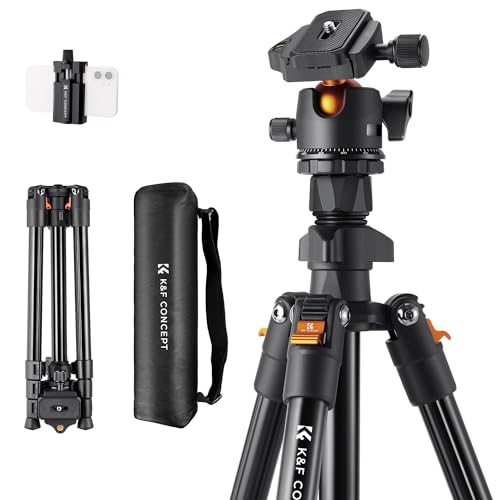
You can buy a small phone tripod for a few dollars. These are great for timer photos. They hold your phone steady at the perfect angle.
If you don’t have a tripod, get creative. Lean your phone against a book, water bottle, or tree. Just make sure the camera lens isn’t blocked.
Frame your shot before setting the timer. Use objects in the environment to help with composition. A doorway or window frame can make a nice border.
The National Park Service photography tips suggest thinking about your background. What’s behind you in the timer shot? A messy room or a beautiful view?
When you learn how to do timer on iPhone camera, placement is half the battle. Take a minute to set up your phone right. It makes all the difference in your final photo.
Common Timer Mistakes to Avoid
I’ve made all these mistakes myself. Now I know better, and I want to save you the trouble.
Don’t set the timer without checking your frame first. Make sure the camera sees what you want it to see. I’ve cut off heads by rushing this step.
Avoid unstable surfaces. If your phone might fall, don’t put it there. I once had my phone slide off a car hood during a countdown.
Don’t forget to turn off the timer when you’re done. If you leave it on, your next photos will have delays. This can be confusing when you’re trying to snap quick shots.
Watch your lighting. If the sun is behind you, your face might be in shadow. Try to face the light source for better photos.
Don’t run too far during the 10-second timer. You need to be in the frame when the photo snaps. Practice a few times to gauge your distance.
Learning how to do timer on iPhone camera means avoiding these simple errors. They’re easy to fix once you know about them. Your timer photos will look much better.
Advanced Timer Tips and Tricks
Once you know the basics, try these pro tips. They’ll take your timer photos to the next level.
Use the volume buttons as a shutter when the timer is set. This can be easier than tapping the screen. Just press the volume up or down button to start the countdown.
Try using the timer with portrait mode. You can get great depth-of-effect photos with you in them. The blurry background makes you stand out.
Set up your shot, then use your Apple Watch as a remote. You can see the preview on your watch and tap to take the photo. This gives you more control.
For group photos, assign someone to watch the phone. They can make sure no one walks in front of it during the countdown. This happens more than you’d think.
According to Apple’s feature guides, newer iPhones have more timer options. Check if your model has updates in the Camera settings.
Practice your “timer run” to get in position fast. I have a smooth move where I set the phone and dash to my spot. It looks natural in the photo.
Mastering how to do timer on iPhone camera is about these little extras. They make the difference between an okay photo and a great one. Try one new trick each time you use the timer.
Timer Alternatives and Apps
The built-in timer is great, but there are other options too. Sometimes an app can give you more control over your photos.
Many third-party camera apps have timer features. Some let you set custom times, like 5 seconds or 15 seconds. This gives you more flexibility than just 3 or 10.
Some apps take a photo every few seconds for a set period. This is great for capturing action or changing expressions. You get a sequence of moments to choose from.
Voice control is another option. You can tell Siri to “take a picture in 5 seconds.” This hands-free method is useful when your fingers are full.
The FCC’s guide to photo sharing mentions being careful with third-party apps. Make sure you trust the app before giving it camera access.
For most people, the built-in timer is perfect. It’s simple, reliable, and doesn’t need extra downloads. But it’s good to know about other options too.
When you’re learning how to do timer on iPhone camera, start with the basics. The built-in tool works well for almost everything. You can explore apps later if you want more features.
Frequently Asked Questions
How do I set a timer on my iPhone camera?
Open the Camera app and tap the clock icon at the top. Choose 3 seconds or 10 seconds, then tap the shutter button. The countdown will start right away.
Can I change the timer length to something other than 3 or 10 seconds?
Not with the built-in Camera app. You only get 3 and 10 second options. For custom times, you’ll need to download a third-party camera app from the App Store.
Why would I use the timer instead of just taking a normal photo?
The timer lets you be in the photo with your friends or family. It also reduces camera shake for clearer pictures. It’s perfect for group shots and stable still-life photos.
Does the timer work with all camera modes?
It works with Photo, Portrait, and Square modes. It doesn’t work with Video, Slo-mo, or Time-lapse modes. Make sure you’re in the right mode before setting the timer.
How do I turn off the timer after using it?
Tap the timer icon again and select “Off.” The timer turns off automatically after each use, but it’s good to check. I always make sure it’s off before taking regular photos.
Can I use the timer with flash?
Yes, the timer works with flash. Set your flash setting first, then set the timer. The flash will fire with each photo in the burst sequence.
Conclusion
So that’s how to do timer on iPhone camera. It’s a simple feature that makes a big difference in your photos.
Start with the 10-second timer for group shots. Use the 3-second timer for reducing camera shake. Remember to position your phone on a stable surface first.
With practice, you’ll be taking great timer photos in no time. Your friends will wonder how you got such good shots without a photographer. Just don’t tell them all your secrets at once.
The next time you want a photo with everyone in it, try the timer. It’s already on your phone waiting to be used. You might be surprised at how much better your photos look.
Related Posts