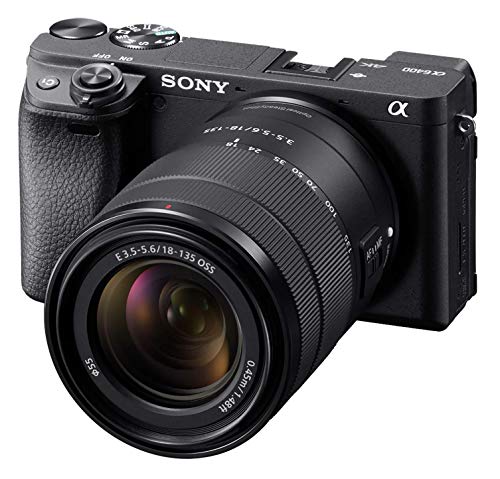
It’s a real pain when your camera stops working. You go to take a picture, and nothing happens. The screen might be black, or you get an error message.
I’ve been there many times with my own phones and cameras. The panic sets in fast. But don’t worry, I’ve learned a lot of tricks over the years.
This guide will walk you through the most common reasons. We’ll find out why your camera does not work and get it clicking again.
Why Does My Camera Not Work? The Top Reasons
Let’s start with the basics. There are a few usual suspects when a camera fails.
A software crash is the number one reason. Your phone or camera is a small computer. Sometimes its apps freeze up.
Another big reason is a dirty or blocked lens. Your finger or a phone case can easily cover it. You’d be surprised how often this happens.
Battery power is also key. Some cameras won’t let the app open if the battery is too low. It’s a safety thing to save the last bit of power.
Storage space matters too. If your phone’s memory is full, the camera app can’t save new photos. This can make it seem like the camera does not work at all.
So, why does my camera not work? It’s usually one of these simple things. Let’s dig into each one.
Software Glitches and How to Fix Them
Software problems are the most common fix. The camera app itself might be frozen.
The first thing to try is closing the app. Swipe it away from your recent apps list. Then open it fresh. This fixes the issue about half the time.
If that doesn’t work, restart your whole device. Turn your phone or camera off, wait 30 seconds, and turn it back on. This clears the device’s short-term memory.
Check for system updates too. An old operating system can cause bugs. Go to your device’s settings and look for “Software Update.”
You can also try updating the camera app itself. Go to the App Store or Google Play Store. See if there’s an update waiting for you.
As a last resort, you can reset the app’s settings. This won’t delete your photos. Go to Settings > Apps > Camera > Storage, then tap “Clear Cache.”
When you ask “why does my camera not work,” start with these software steps. They are easy and often solve the problem fast.
Physical Issues: Lens, Case, and Hardware
Now let’s look at physical problems. These are things you can see and touch.
First, check the camera lens. Is it clean? Wipe it gently with a soft, dry cloth. Fingerprints and dirt can blur everything.
Look at your phone case. Is it blocking the lens? Some cases are poorly designed. They cover part of the camera bump.
Remove the case and try the camera again. If it works, you need a new case. Get one with proper cutouts.
Listen for any strange sounds. A broken internal part might make a grinding noise. This is a sign of serious hardware damage.
Check for water damage too. Did your phone get wet? Look for a white or pink sticker inside the SIM card slot. If it’s red, you have water damage.
According to FCC guidelines, electronic devices can fail from liquid exposure. If this is why your camera does not work, you may need professional help.
Battery and Power Problems
Your device needs good power to run the camera. The camera sensor and screen use a lot of energy.
Is your battery very low? Try plugging it in. Some phones limit camera use below 5% battery.
A weak or old battery can also cause issues. It might not provide steady power. This can make the camera app crash as soon as you open it.
Check your battery health in the settings. If it says “Service Recommended” or similar, the battery is worn out. You might need to replace it.
Try using the camera while connected to the charger. If it works then, your battery is likely the culprit. This is a clear sign.
So, if you’re wondering “why does my camera not work,” check the battery first. It’s a simple thing that gets overlooked.
Storage Space and Memory Errors
Your camera needs space to save pictures. No space means no new photos.
Go to your device’s storage settings. How much free space do you have? You need at least a few hundred megabytes.
Delete some old photos or apps you don’t use. Move pictures to the cloud or a computer. Freeing up space can magically fix the camera.
The memory card could be the problem too. If you use a DSLR or point-and-shoot, take out the SD card. Put it back in to reseat it.
The card might be corrupted. Try a different card if you have one. See if the camera works with the new card.
Formatting the card in the camera can also help. Warning: this erases everything on the card. Only do this if your photos are backed up.
Lack of storage is a common reason your camera does not work. It’s an easy fix once you know to look for it.
App Permissions and Settings
Your camera app needs permission to run. Sometimes an update resets these permissions.
Go to your device’s Settings, then Privacy, then Camera. Make sure the toggle is green for your camera app. It should be turned on.
Check other app permissions too. Does the app have permission to access your photos? It needs this to save them.
Look inside the camera app’s own settings. Maybe you accidentally changed a mode. Make sure it’s on “Photo” mode and not “Video” or a special filter.
Reset the camera app’s settings to default. This fixes weird issues caused by changed options. You can find this in the app’s settings menu.
If you have multiple camera apps, they can conflict. Try disabling or uninstalling any third-party camera apps. Use the stock one that came with your phone.
When your camera does not work, permissions are a quick check. It takes two seconds and could be the whole solution.
Network and Connection Issues
This sounds odd, but network problems can affect your camera. Some apps use location services.
If you’re in a poor service area, the camera might try and fail to tag a location. This can cause a freeze. Try turning on Airplane Mode, then open the camera.
Bluetooth or Wi-Fi connections can also interfere. A connected smartwatch or speaker might cause a software hiccup. Turn off Bluetooth and see if the camera works.
According to the National Institute of Standards and Technology, radio frequency interference can disrupt device functions. It’s rare, but it happens.
Try the camera in a different place. Move away from routers or large metal objects. See if the problem goes away.
If you’re using a video calling app like Zoom, the camera might be “in use” by another app. Close all other apps that could be using the camera.
So, why does my camera not work? Don’t forget to check your connections. It’s a less obvious place to look.
When It’s a Hardware Failure
Sometimes, the camera is physically broken. This is the worst-case scenario.
Signs of hardware failure include a black screen with no error. You might hear a click but see nothing. The lens might not extend on a point-and-shoot camera.
If you dropped your device, the camera module could be disconnected. The impact can loosen a tiny cable inside.
Look for cracks over the lens. Even a hairline crack can ruin the camera’s ability to focus. It distorts the light coming in.
Does the flash work? Try taking a picture with the flash on. If the flash fires but the picture is black, the image sensor is likely dead.
For hardware issues, you usually need a pro. Contact the manufacturer or visit a repair shop like Apple Support or a local trusted store.
If your camera does not work due to hardware, it’s not your fault. These parts can just wear out or break.
Preventive Tips to Keep Your Camera Working
An ounce of prevention is worth a pound of cure. Keep your camera happy with these habits.
Always keep your software updated. Updates fix bugs and security holes. They keep your camera app running smooth.
Clean your lens regularly with a microfiber cloth. Don’t use harsh cleaners or paper towels. They can scratch the coating.
Manage your storage. Don’t let it get completely full. I try to keep at least 10% of my storage free at all times.
Use a good case that protects the camera bump. Make sure it doesn’t block the lens or the flash. A raised lip around the camera is best.
Restart your phone once a week. This clears out little glitches before they become big problems. It’s like a fresh start for your device.
Following these tips can stop you from asking “why does my camera not work” so often. A little care goes a long way.
Frequently Asked Questions
Why does my camera not work on my iPhone?
It’s often a software crash. Close the Camera app and restart your iPhone. If that fails, check for an iOS update in Settings.
Why does my camera not work on my Android phone?
Clear the camera app’s cache and data. Go to Settings > Apps > Camera > Storage. Tap “Clear Cache” first, then “Clear Data” if needed.
My camera shows a black screen. What do I do?
First, check for a lens cover or a finger blocking it. Then, restart your device. If it’s still black, it could be a hardware failure.
Why does my front camera work but not my back camera?
This points to a problem with the specific camera module. Try switching between them in the app. If only one fails, that hardware might be damaged.
I get an error message saying “Camera failed.” What does that mean?
This is a generic software error. Restart your phone immediately. If it keeps happening, you may need to reset your phone’s settings (not a full factory reset).
Can a virus make my camera not work?
It’s possible but not common. Malware can disable hardware. Run a security scan with a trusted app. The CISA recommends keeping security software updated.
Conclusion
So, why does my camera not work? As you can see, the reasons are usually simple.
Start with a quick restart and a lens clean. Check your storage and battery. These steps solve most problems in minutes.
If your camera does not work after all this, it might be a hardware issue. Don’t be afraid to seek professional help for a repair.
I hope this guide helped you find the answer. Now go out and capture some great moments with your working camera.
Related Posts