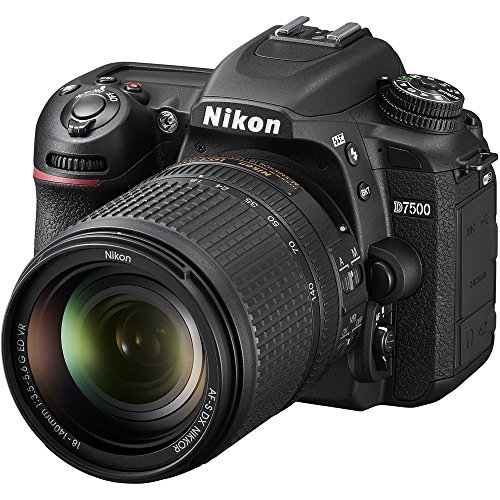
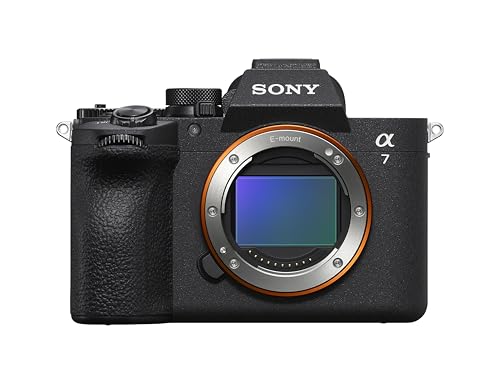
Use a USB cable – this is how to hook camera to computer for most people. It’s the easiest way to move your photos and videos from the camera to your computer for editing or sharing.
You might have a new camera and want to see your pictures. Or maybe you need to free up space on your memory card. I’ve been there many times myself.
Connecting them seems hard at first. But it’s really not that bad once you know the steps. I’ll walk you through the whole process.
This guide covers every method you might need. We’ll talk about cables, wireless ways, and what to do if things don’t work.
What You Need to Hook Camera to Computer
First, let’s gather your tools. You don’t need much to get started.
Find the USB cable that came with your camera. It’s usually in the box. If you lost it, you can buy a new one online.
You’ll need your camera and computer, of course. Make sure your camera has some battery life left. A dead camera won’t connect.
Check if you need any special software. Some cameras need a program to talk to the computer. Your camera’s manual will tell you.
I always keep my memory card in the camera. You can also use a card reader. But hooking the camera directly is simpler for most people.
That’s really all you need. Now let’s look at the different cables you might use.
Choosing the Right Cable to Hook Camera to Computer
Cables can be confusing. They come in different shapes and sizes.
The most common type is USB. Many cameras use a small USB port. It’s often called USB Mini or Micro.
Newer cameras might use USB-C. This cable has the same end on both sides. It’s becoming very popular now.
Some professional cameras use different cables. They might need FireWire or Ethernet. But those are less common for home use.
Look at your camera’s port to see what you have. It’s usually marked with a symbol. The USB symbol looks like a trident.
If you’re not sure, check your camera’s manual. Or look up your camera model online. Getting the right cable is the first step to hook camera to computer.
Step-by-Step: How to Hook Camera to Computer with USB
Let’s do the basic USB method first. This works for most cameras.
Turn your camera off before you plug it in. This helps avoid problems. I’ve learned this from experience.
Plug the small end of the cable into your camera. It should fit easily. Don’t force it if it doesn’t go in.
Now plug the other end into your computer’s USB port. Most computers have these on the side or back. Laptops have them on the sides.
Turn your camera on to the playback mode. This is the mode where you view photos. It often has a play button symbol.
Your computer should make a sound. A window might pop up asking what to do. This means it sees your camera.
That’s how to hook camera to computer with a cable. Pretty simple, right Now let’s see what happens next.
What Happens After You Hook Camera to Computer
Your computer needs to recognize the camera. This might take a moment.
Windows might install drivers automatically. These are small programs that help devices talk. Just wait for it to finish.
On a Mac, your camera should show up on the desktop. It will look like a new drive or device. You can click on it to see your files.
You might get a pop-up window with options. It could ask if you want to import photos. You can say yes or explore the files yourself.
If nothing happens, don’t worry. We’ll fix that later. Sometimes computers need a little nudge.
The USA.gov tech tips page has general advice for device connections. It’s a good resource for basic computer help.
Once connected, you can access all your photos. They’re usually in a folder called DCIM. This is where cameras store pictures.
Wireless Ways to Hook Camera to Computer
Don’t want to use cables? You have wireless options too.
Many new cameras have Wi-Fi built in. You can connect them to your home network. Then your computer can find them on the network.
Some cameras use Bluetooth instead. This works for smaller file transfers. It’s slower than Wi-Fi for lots of photos.
You might need an app on your computer. Camera companies often provide these for free. Check the manufacturer’s website.
Wireless is great for quick transfers. But it’s usually slower than a cable. I use it when I don’t have my cable handy.
The process varies by camera brand. Your manual will have specific instructions. Look for “wireless transfer” in the index.
Learning how to hook camera to computer wirelessly takes practice. But it’s very convenient once you set it up.
Using Memory Card Readers to Hook Camera to Computer
Another option is to skip the camera entirely. Use a card reader instead.
Take the memory card out of your camera. Be careful when you do this. Turn the camera off first.
Put the card into a USB card reader. These are cheap and work with most computers. You can get one for under ten dollars.
Plug the card reader into your computer’s USB port. The computer sees it as a removable drive. You can then copy files off it.
This method is often faster than connecting the camera. It also saves your camera’s battery. I use this when transferring lots of files.
According to Library of Congress digital preservation guides, regular backups are important. A card reader makes this easy to do.
This is another valid way to hook camera to computer. It’s just moving the storage instead of the whole camera.
Common Problems When You Hook Camera to Computer
Sometimes things don’t work right. Here are common issues and fixes.
The computer might not see your camera. Try a different USB port on your computer. Some ports don’t provide enough power.
Your camera might not turn on when connected. Check if it has a special “PC” mode. Some cameras need this setting.
The cable could be the problem. Try a different cable if you have one. Cables can fail over time.
Your camera’s battery might be too low. Charge it fully and try again. Some cameras won’t connect with low power.
Restart both your camera and computer. This fixes many connection issues. It’s my go-to solution when things act up.
If you still can’t hook camera to computer, check for driver updates. Visit the camera maker’s website for help.
Getting Photos Off After You Hook Camera to Computer
Once connected, you need to move your files. Here’s how to do it safely.
Open the camera folder on your computer. It’s usually under “This PC” on Windows. On Mac, it’s on the desktop or in Finder.
Find your photos in the DCIM folder. They might be in subfolders by date. Camera models organize files differently.
Select the photos you want to copy. You can drag them to your desktop or another folder. Or use copy and paste commands.
Wait for the transfer to complete. Don’t unplug the cable during this time. You could lose files or damage them.
After copying, you can delete photos from the camera. This frees up space. But make sure you have backups first.
The NASA image archive guidelines suggest keeping multiple copies of important files. Always back up your best photos.
Why Hook Camera to Computer Instead of Using Apps
You might wonder why not just use your phone. There are good reasons for the direct connection.
Transferring to a computer gives you full quality. Phone apps often compress images. You lose detail that way.
Computers have more storage space. You can keep all your original files. Phones fill up quickly with high-res photos.
Editing is easier on a computer screen. You see more detail for adjustments. Big screens help with precise edits.
Backups are simpler from a computer. You can use external hard drives or cloud services. This protects your memories better.
Learning how to hook camera to computer gives you control. You manage your files directly. No middleman apps needed.
I prefer this method for important photos. For quick snaps, phone transfer is fine. But for keepers, I always use the computer.
Safety Tips When You Hook Camera to Computer
Keep your gear and data safe with these tips.
Always turn off the camera before connecting or disconnecting. This prevents electrical issues. It’s a good habit to develop.
Don’t force cables into ports. If it doesn’t fit easily, check the orientation. USB-C cables go in either way, but older types don’t.
Use antivirus software on your computer. Cameras can get viruses from infected computers. It’s rare but possible.
Eject the camera properly before unplugging. On Windows, use the “Safely Remove Hardware” icon. On Mac, drag the camera icon to the trash.
Keep your camera’s firmware updated. Manufacturers fix bugs and improve compatibility. Check their website every few months.
The FCC website has device safety information. It’s good to follow general electronic safety rules when you hook camera to computer.
Advanced Methods to Hook Camera to Computer
Ready for more technical options? Here are some advanced techniques.
Some cameras support tethered shooting. This means you control the camera from the computer. You see photos instantly on the big screen.
You might need special software for this. Adobe Lightroom and Capture One offer tethering. Check if your camera model is supported.
Live view streaming is another option. You can use your camera as a webcam. This became popular during video calls.
Camera companies released software for this purpose. It’s often free to download. Look for “webcam utility” on their site.
For video work, you might capture directly to the computer. This saves space on memory cards. It requires fast connections and powerful computers.
These methods show why learning how to hook camera to computer matters. It unlocks creative possibilities beyond simple file transfers.
Frequently Asked Questions
How do I hook camera to computer for the first time?
Use the USB cable that came with your camera. Plug it into both devices, then turn the camera on. Your computer should recognize it after a moment.
Why won’t my computer see my camera when I hook it up?
Try a different USB port or cable first. Make sure your camera is turned on and in the right mode. Restarting both devices often fixes this problem.
Can I hook camera to computer without a cable?
Yes, if your camera has Wi-Fi or Bluetooth. You’ll need to set up the wireless connection first. Some cameras also work with memory card readers.
Is it safe to hook camera to any computer?
Use computers you trust with updated antivirus software. Public computers might have malware. Always eject the camera properly before disconnecting.
How do I transfer photos after I hook camera to computer?
Open the camera’s folder, find your photos in the DCIM folder, and copy them to your computer. You can drag and drop or use copy/paste commands.
Can I use my camera as a webcam when I hook it to computer?
Many newer cameras can work as webcams. Check your manufacturer’s website for special software. You might need a specific cable for clean video feed.
Conclusion
So that’s how to hook camera to computer. It’s easier than it seems at first glance.
Start with the basic USB cable method. It works for most people and situations. Once you’re comfortable, try wireless options for convenience.
Remember to transfer your photos regularly. This keeps your memory card free for new shots. It also gives you backups of your important memories.
Don’t be afraid to experiment with different methods. Each camera and computer combination is unique. You’ll find what works best for your setup.
The ability to hook camera to computer opens up many possibilities. From simple photo transfers to live streaming, it’s a valuable skill for any photographer.
Related Posts