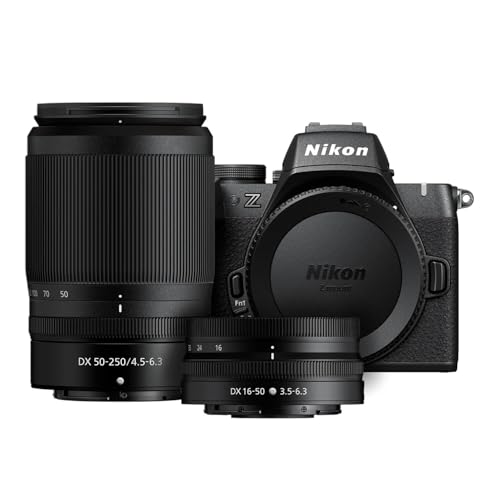
Use a USB cable or memory card reader – these are the main ways to transfer photos from a camera to a computer. The process is simple and fast once you know the steps.
I used to get stuck with this all the time. My photos would just sit on the camera, waiting to be moved. It felt like a big, hard job.
But it’s not hard at all. I’ve moved thousands of photos over the years. Now I can show you how to do it the easy way.
This guide will walk you through every step. You’ll learn the best methods and how to avoid common mistakes.
What You Need to Transfer Photos from a Camera to a Computer
Before you start, gather a few things. Having them ready makes the whole job go smooth.
First, you need your camera, of course. Make sure it has some charge left in the battery. A dead camera won’t work for a transfer.
You also need your computer. A laptop or desktop both work fine. Just make sure it’s turned on and ready to go.
Next, find the right cable. Most cameras come with a special USB cable in the box. It’s often a small, square plug on one end.
If you can’t find the cable don’t worry. You can use a memory card reader instead. These cheap and you can buy one at any tech store.
Finally, you need the photos themselves. Check your camera to make sure you took some pictures. It sounds silly, but I’ve done it before.
With these items ready, you’re set. The actual process of how to transfer photos from a camera to a computer is next.
Method 1: Using a USB Cable to Transfer Photos
This is the most common way people move their pictures. It uses the cable that likely came with your camera.
First, locate the small port on your camera. It’s often hidden under a little rubber flap on the side. Open that flap up gently.
Plug the small end of the USB cable into your camera. Make sure it goes in the right way. Don’t force it if it doesn’t fit.
Now, plug the other end into your computer. Look for a standard USB port. These are the flat, rectangular slots on your machine.
Turn your camera on. Many cameras need to be in a special “PC” or “Transfer” mode. Check your camera’s screen for a message.
Your computer should make a sound. A window might pop up asking what you want to do. This is a good sign that the connection worked.
Open the folder that appears. You should see your photos listed inside. Now you can drag them to your computer’s desktop or pictures folder.
Method 2: Using a Memory Card Reader for Photo Transfer
I like this method a lot. It’s often faster than using a cable, and it’s very simple.
Start by turning your camera off. This is important for safety. You don’t want to damage your memory card.
Open the memory card slot on your camera. It’s usually next to the battery door. Press the card in slightly, and it will pop out.
Take the small memory card out carefully. Hold it by the edges. Try not to touch the gold contacts on the back.
Now, take your card reader. Plug it into an open USB port on your computer. The reader is just a small adapter.
Insert your memory card into the correct slot on the reader. It only fits one way, so don’t force it. You’ll feel a gentle click.
Your computer will recognize the card as a new drive. Open it like any other folder. Your photos will be inside, ready to copy.
This is a great way to learn how to transfer photos from a camera to a computer. It feels more direct than the cable method.
Step-by-Step Guide to Transfer Photos from a Camera to a Computer
Let’s break it down into simple steps. Follow these, and you’ll have your photos moved in no time.
Step one: Connect your devices. Use either the USB cable or the card reader method we just talked about. Get that physical link set up first.
Step two: Find your photos on the camera. When the camera or card shows up on your computer, open it. Look for a folder called “DCIM”.
Step three: Select the photos you want. You can click on one photo, or hold the Ctrl key (Cmd on Mac) to pick many. You can also just select them all.
Step four: Copy the photos. Right-click on the selected photos and choose “Copy”. Or, you can press Ctrl+C on your keyboard.
Step five: Paste the photos on your computer. Go to your Pictures folder or Desktop. Right-click in an empty space and choose “Paste”, or press Ctrl+V.
Step six: Wait for the transfer to finish. A window will show a progress bar. Don’t unplug anything until it’s done and says “Complete”.
Step seven: Safely remove the device. On your computer, click the “Safely Remove Hardware” icon. Then you can unplug the cable or card reader.
Where Do Transferred Photos Go on Your Computer?
This is a common worry. You move the photos, but then you can’t find them. Let’s fix that.
By default, photos often go to the “Pictures” folder. On Windows, you can find this in the Start menu or on the left side of File Explorer.
On a Mac, look for the “Pictures” folder in your Finder sidebar. It has a little camera icon. That’s the usual spot for imported images.
You can choose a different place, though. When you paste the photos, you can paste them anywhere. Your desktop is a good, easy-to-find spot.
I suggest making a new folder for each batch of photos. Name it with the date or event, like “Beach Trip July 2024”. This keeps things tidy.
The Library of Congress talks about organizing digital files. A good system helps you find your memories later.
So, after you learn how to transfer photos from a camera to a computer, learn to organize them. It saves you a big headache down the road.
Common Problems When Transferring Photos and How to Fix Them
Sometimes things don’t go as planned. That’s okay. Here are the usual problems and their simple fixes.
Problem one: The computer doesn’t see the camera. First, check if the cable is plugged in all the way. Try a different USB port on your computer.
Problem two: The camera says “USB Mode Error”. Turn the camera off and on again. Make sure it’s set to the right transfer mode in its menu.
Problem three: The photos transfer slowly. This can happen with very large files or old USB ports. Be patient, or try using a card reader instead for speed.
Problem four: You get a “Device Not Recognized” message. This often means you need a driver. The Microsoft Support site can help find the right one for your camera model.
Problem five: The memory card won’t read. Try taking it out and putting it back in. Make sure it’s clicked into place in the reader.
Problem six: Photos are missing after the transfer. Don’t panic. They might still be on the camera. Check the camera’s memory before you delete anything from it.
Learning how to transfer photos from a camera to a computer includes solving these little issues. They are all part of the process.
Best Software to Help Transfer Photos from a Camera
You don’t need special software. But some programs can make the job easier and more fun.
Your computer’s built-in software works fine. Windows has the “Photos” app, and Macs have “Photos” (formerly iPhoto). They often open automatically when you connect a camera.
These apps guide you through the import steps. They might ask you to tag people or add a description. You can skip these steps if you want.
Adobe Lightroom is a popular choice for serious photographers. It’s not free, but it’s powerful. It transfers photos and lets you edit them right away.
For a free option, try Google Photos. You can upload pictures directly to the cloud after transferring them. This gives you a backup copy online.
The National Park Service uses digital archives. Good software helps preserve photos for a long time, which is a smart goal.
My advice? Start with the simple software that came with your computer. Once you know how to transfer photos from a camera to a computer the basic way, you can try fancier tools.
Tips for a Fast and Smooth Photo Transfer
A few tricks can make this task quick and easy. I use these every time I move my pictures.
Tip one: Transfer photos in batches. Don’t wait until your memory card is completely full. Moving a few hundred at a time is faster and safer.
Tip two: Use a USB 3.0 port if you have one. These ports are often blue inside. They move data much faster than the older black USB 2.0 ports.
Tip three: Rename your files as you go. Instead of “IMG_0045.JPG”, name it “Sunsets_July_1.JPG”. You’ll thank yourself later when you’re searching.
Tip four: Delete photos from the camera AFTER you confirm they are safe on the computer. I always look at a few on my computer screen before I clear the card.
Tip five: Keep your cables and card readers in one place. I have a small box just for camera gear. No more searching for that little USB cable.
Following these tips makes the process of how to transfer photos from a camera to a computer feel less like a chore. It becomes a simple, quick habit.
How to Transfer Photos Wirelessly from Camera to Computer
Newer cameras can send photos without any cables at all. This feels like magic, but it’s just modern tech.
First, check if your camera has Wi-Fi or Bluetooth. Look for a symbol on the body or in the menu. Many models from the last five years have this.
You might need to install an app on your computer. The camera’s brand (like Canon or Nikon) will have a free app for wireless transfers.
Turn on the wireless function on your camera. Then, connect it to your home Wi-Fi network, just like you connect a phone. The camera’s screen will guide you.
Open the app on your computer. It should find your camera on the network. You may need to enter a password shown on the camera’s screen.
Select the photos you want to send. Then hit the transfer button. The photos will fly through the air to your computer’s folder.
Wireless is great for sending a few photos quickly. For a full card of hundreds of pictures, a cable or card reader is still faster and more reliable.
Learning this wireless method is another part of mastering how to transfer photos from a camera to a computer. It gives you more options.
Frequently Asked Questions
Do I need special software to transfer photos from my camera?
No, you don’t need special software. Your computer’s operating system can handle it. Built-in apps like Windows Photos or Mac Photos will work just fine.
Why won’t my computer recognize my camera when I plug it in?
This is often a cable or power issue. Try a different USB cable or port. Also, make sure your camera is turned on and its battery isn’t dead.
What is the fastest way to transfer photos from a camera to a computer?
Using a memory card reader is usually the fastest method. It’s often quicker than a direct USB cable connection, especially for lots of large files.
Is it safe to delete photos from the camera after transferring?
Yes, but only after you check. Open a few photos on your computer to make sure they transferred correctly. Then you can format the card in the camera menu.
Can I transfer photos from my camera to my phone instead of a computer?
Yes, many cameras can do this. Use the camera’s Wi-Fi app to connect directly to your phone. It’s great for sharing a quick picture on social media.
My photos are in a RAW format. Can I still transfer them the same way?
Yes, you transfer them the exact same way. RAW files are just bigger. Your computer might not show a preview, but the files will copy over without any problem.
Conclusion
So, how to transfer photos from a camera to a computer? It’s a simple skill that unlocks all your pictures. You can use a cable, a card reader, or even Wi-Fi.
The key is to just start. Plug things in and see what happens. Your computer is designed to help you with this task.
I hope this guide made the process clear. Now you can get those photos off your camera and into the world. Go enjoy your memories on the big screen.
Related Posts